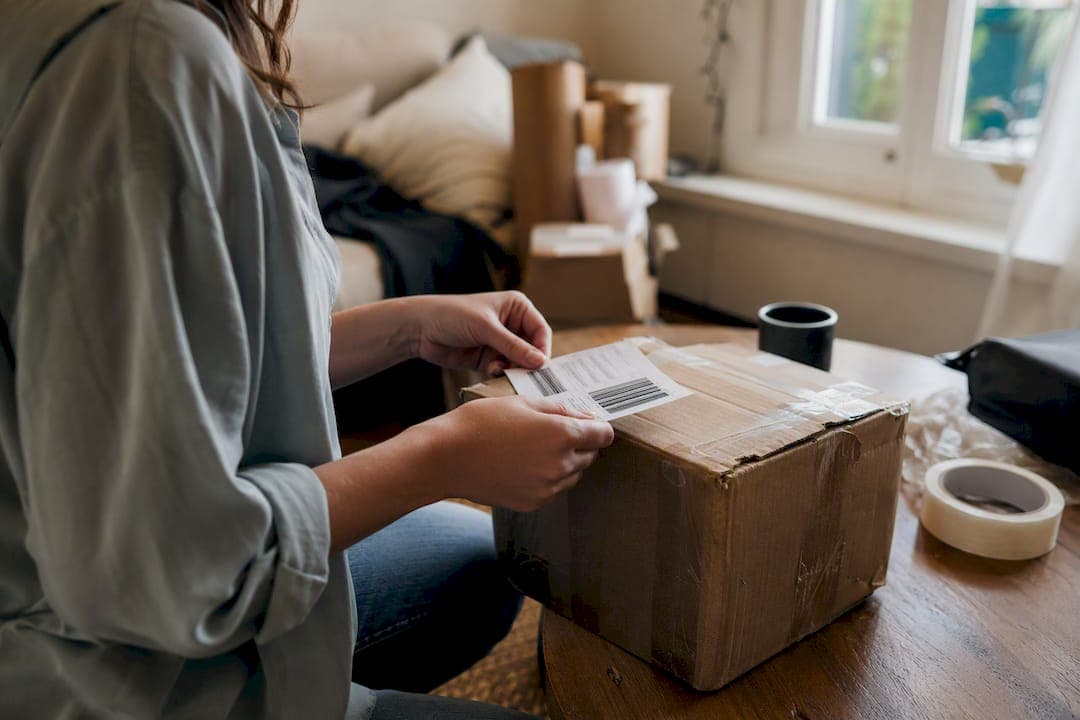
To print a shipping label in Singapore right now, create the shipment on your booking platform, download the label as a correctly sized PDF (4 x 6 in / 100 x 150 mm), and print it at home, on a thermal label printer, or at a public printing kiosk. All three routes get you a scannable label in minutes.
Here's the quickest path if you're printing right now:
- Have a printer at home? Book your shipment, download the PDF label, set print scaling to "actual size," and print on A4 or a label sheet.
- Shipping often? Invest in a thermal label printer so you skip ink, paper cutting, and taping altogether.
- No printer at all? Save the PDF to your phone or a USB drive and print it at a postal kiosk or retail print shop near you.
Simplyparcel generates a ready-to-print label the moment you book a courier, and you can schedule pickup in the same session.
Pro Tip: Always open your label PDF once before printing to confirm it shows a barcode, not a broken image or blank page. A corrupted file is the most common reason labels get rejected at drop-off.
Key Takeaways
Printing a shipping label in Singapore comes down to matching your shipping volume to the right method: home printer for occasional use, thermal printer for regular shippers, and kiosks for everyone else.
| Point | Details |
|---|---|
| Three printing routes | Print at home from a PDF, use a thermal printer for volume, or print at a kiosk or print shop with no printer needed. |
| Correct label size | Set print scaling to 100% and paper size to 100 x 150 mm (4 x 6 in) to avoid barcode cut-off. |
| Direct thermal vs. transfer | Direct thermal suits standard shipping labels; thermal transfer suits labels needing long-term durability. |
| Test before batch printing | Print and scan one label first to confirm barcode quality before running bulk orders. |
| Simplyparcel workflow | Generates a printable label and books pickup in one session, reducing extra trips for small shippers. |
Table of Contents
- How to Print a Shipping Label Singapore Sellers Can Trust: The Full Booking Workflow
- Where Can You Print a Shipping Label Without a Home Printer?
- Choosing the Right Printer: Direct Thermal vs. Thermal Transfer
- Getting Print Settings Right So Labels Don't Get Cut Off
- Attaching the Label and Getting Your Parcel Moving
- Sources
How to Print a Shipping Label Singapore Sellers Can Trust: The Full Booking Workflow
Every online shipping label singapore platform follows a similar sequence, whether you're sending one parcel or fifty. Understanding the fields and buttons in advance saves you from re-entering information twice.
Step 1: Enter shipment details. You'll fill in the ship-from address (your address or warehouse), the ship-to address, and the parcel's weight and dimensions. For international parcels, you'll also need a basic goods description and, in many cases, an HS code, which customs authorities use to classify what's inside the box.
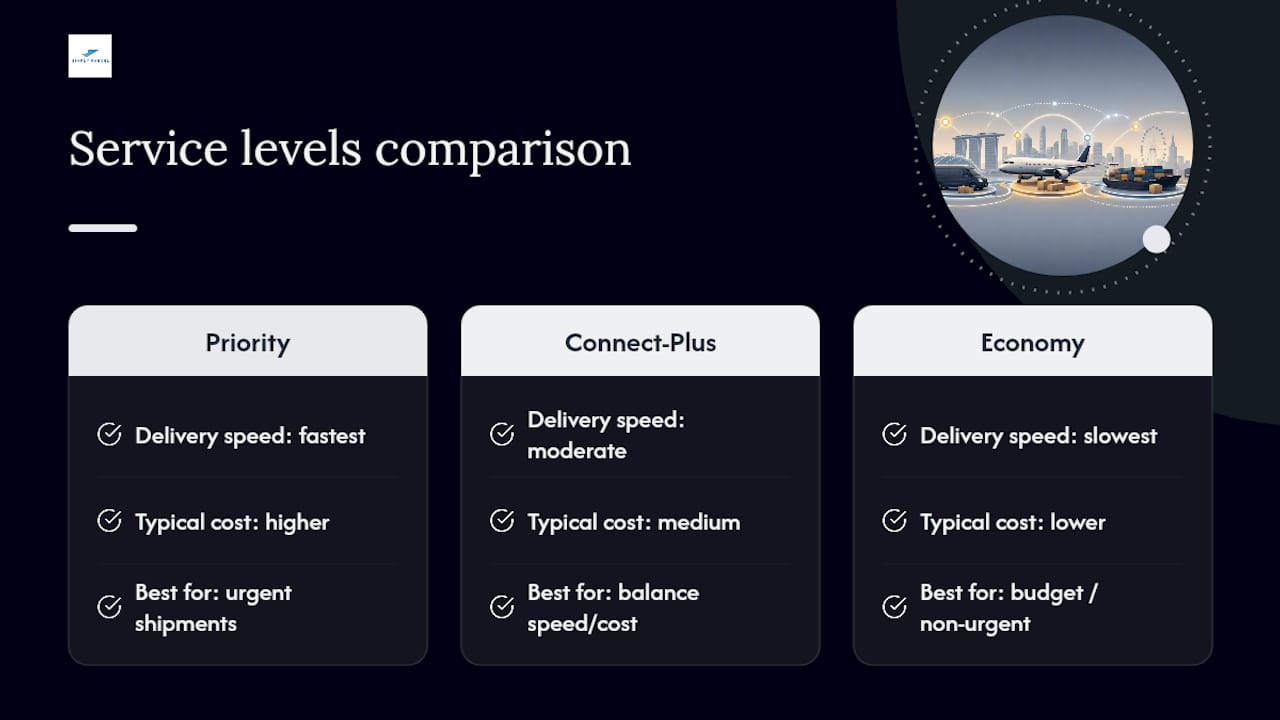
Step 2: Choose your service level. Most Singapore platforms, including Simplyparcel, offer priority, connect-plus, and economy tiers. Pick based on how urgently the parcel needs to arrive versus your budget.
Step 3: Confirm and generate the label. After payment, look for a button labeled "Print Label," "Download AWB" (Air Waybill), or "Download Shipping Document." This is the moment your shipping label software Singapore platform converts your booking into an actual file.
Step 4: Download and check the file type. Standard bookings produce a PDF designed for regular printers. If you're using a dedicated label printer, some platforms also offer a ZPL file, a raw command format thermal printers read directly, which produces crisper output than printing a PDF through a driver.
Step 5: For bulk orders, use the batch export. If you're shipping multiple parcels a day, look for a "Bulk Upload" or "Export All Labels" option. This typically generates a CSV template for your addresses and returns a single ZIP file or multipage PDF containing every label, so you print once instead of clicking through each order individually.
Before you finalize anything, double-check your Singapore address formatting: unit number, block number, street name, postal code, and "Singapore" as the country. For international shipments, verify the recipient's country-specific postal format too, since a malformed address is one of the top reasons parcels stall in transit.
Where Can You Print a Shipping Label Without a Home Printer?
Not having a printer isn't a dead end. Singapore has enough public and retail printing options that this is often the faster choice for occasional shippers.
Save your label as a PDF to your phone's file storage or a USB drive before you leave the house, and keep your booking reference number handy, staff or self-service kiosks may ask for it if the file doesn't open correctly. Self-service parcel kiosks and postal kiosks generally work in one of two ways: you scan a QR code tied to your booking, or you upload the file directly through the kiosk's touchscreen interface.
Retail print shops are the most flexible option. Bring the PDF on a USB stick or email it ahead of time, and ask specifically for:
- A4 or letter-size paper cut to 4 x 6 in (they'll usually trim it for you)
- Matte or adhesive label stock if you want it to stick directly to the box
- Printing at 100% scale, not "fit to page"
This route makes the most sense if you ship rarely, need an urgent reprint, or simply don't want to own a printer for occasional use. Expect a small per-page fee, typically a dollar or two, at most copy shops.
Choosing the Right Printer: Direct Thermal vs. Thermal Transfer
If you're shipping several parcels a week, a dedicated label printer pays for itself quickly in time saved, though for occasional shippers, paying per print at a retail counter is often cheaper than the printer would cost upfront.
The core decision is between two thermal printing technologies. Direct thermal printers heat the label paper directly, no ink or ribbon required, which keeps running costs low and makes them the standard choice for standard shipping labels that just need to survive one trip through the courier network. Thermal transfer printers use a ribbon to press ink onto the label, producing output that resists fading, moisture, and abrasion far better, useful if you're also printing asset tags or labels that need to last months rather than days, according to Appvion's comparison of the two technologies.
Locally available models illustrate both categories well. The Polaroid P460D is a 203 dpi direct thermal printer with USB, Ethernet, and Bluetooth connectivity, a solid entry point for straightforward shipping labels. If you also need durable labels, the Polaroid P426T supports both direct thermal and thermal transfer printing from one device. Brother's QL-1110NWB prints up to 103mm wide and adds Wi-Fi and AirPrint support, a strong pick if multiple staff need to print from different devices.
When comparing specs, prioritize:
- High resolution suitable for scannable barcodes
- Approximately 4-inch roll width suitable to fit standard 100 x 150 mm labels
- Driver support for both Windows and macOS if your team uses mixed devices
- Local warranty and label stock availability, since running out of rolls mid-week and waiting on an overseas supplier defeats the purpose of owning a printer
A locally sold model also means the power plug matches Singapore's standard sockets, something imported printers occasionally get wrong.
Getting Print Settings Right So Labels Don't Get Cut Off
A perfectly generated label can still print wrong if your settings are off, and this is the single most common complaint from first-time shippers.
- Open the platform-exported PDF, not a screenshot. Screenshots lose resolution and often distort barcode proportions.
- Set print scaling to "Actual Size" or 100%. Never use "Fit to Page" or "Shrink to Fit," both will resize your label and can compress the barcode into an unreadable strip.
- Match paper size to 100 x 150 mm (4 x 6 in) in the print dialog if you're using a label printer, or print on A4 with clear cutting guides if you're using a regular printer.
- For thermal printers, confirm the roll width and 203 dpi setting, then run one test label before printing a full batch. A courier's scanner will reject a blurry or oversized code just as easily as a missing one.
- On mobile, use the platform's own app when possible. If you're printing through AirPrint or Android's print service, check the paper size and orientation manually, mobile print dialogs sometimes default to letter size instead of 4 x 6.
Also confirm your browser allows pop-ups, since many labels open in a new tab or trigger a download prompt that gets silently blocked. Use an updated version of Chrome, Edge, or Safari, and let the PDF open in your device's native viewer rather than an embedded preview, this preserves the exact print dimensions. For a deeper look at required fields and formatting, Simplyparcel's shipping label requirements guide covers the specifics for both domestic and international parcels.
Attaching the Label and Getting Your Parcel Moving
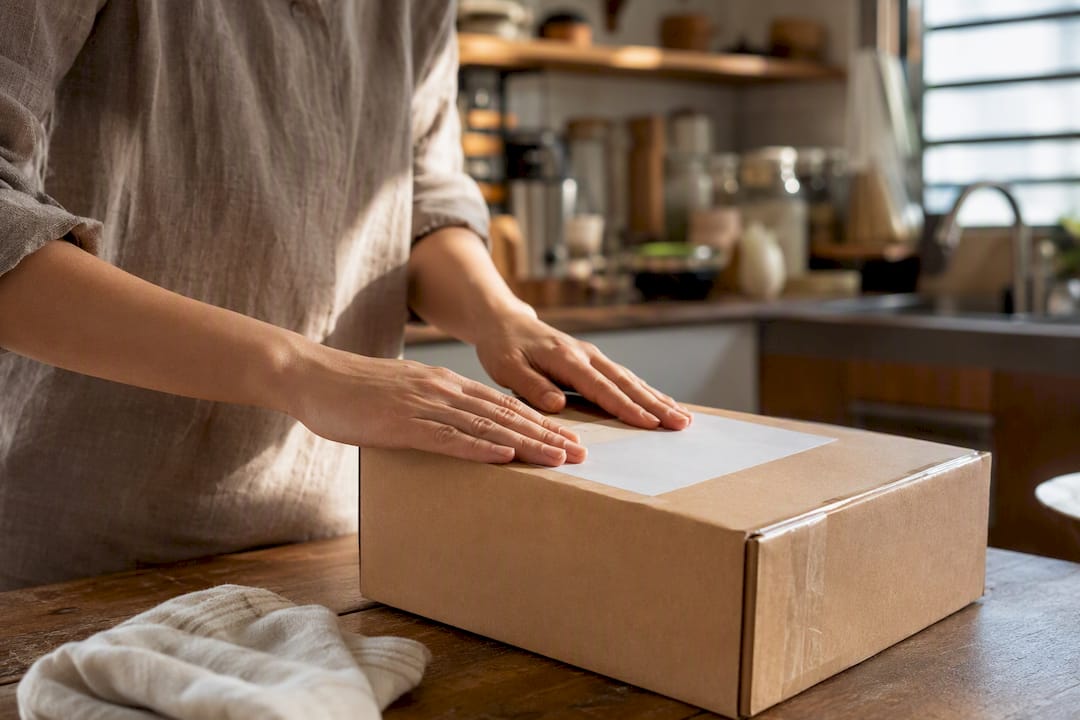
Place the printed label flat on the parcel's largest surface, away from seams, handles, or corners, so the barcode scans cleanly on the first pass at the courier's sorting facility. If the parcel might face rain or rough handling, slide the label into a clear adhesive pouch or tape over the edges, just keep the barcode area flat and uncovered.
Once the label's on, you're choosing between drop-off and pickup. Either way, bring your booking reference and the printed label. For pickup, confirm the courier's arrival window and hand the parcel over directly rather than leaving it unattended.
Before you send it off, check for these red flags:
- Missing customs declaration form on international parcels
- Address fields that don't match what you entered during booking
- A label printed sideways or at the wrong scale
If pickup fits your schedule better than a drop-off run, Simplyparcel's pickup booking guide walks through scheduling a collection window.
Why online label creation with booked pickup wins for small shippers
Generating a label online and booking pickup in the same session cuts out an extra trip and reduces the address or weight errors that come from re-entering details by hand. Simplyparcel's rate comparison and label generation make that workflow quick. If you ship only occasionally, retail printing still works fine.
— Simply
Get an Instant Quote and a Printable Label in One Booking
Simplyparcel replaces the guesswork of juggling separate courier accounts with one place to compare rates, generate a correctly sized printable label, and schedule pickup, all before you've finished your coffee. Whether you need a standard 4 x 6 in PDF for your home printer or you're setting up a thermal printer for weekly volume, the label comes out ready to scan the first time. Enter your parcel details and get an instant shipping quote to see rates across priority, connect-plus, and economy options, generate your label, and lock in a pickup window without leaving the platform.
Sources
- Thermal transfer vs. direct thermal printing: which is better for package delivery and logistics labels
- Polaroid P460D Thermal Label Printer - USB, Ethernet & Bluetooth
- QL-1110NWB Label Printer | Brother Singapore